
Cyber security starts with the whole family home
Cyber security in a family home means the combination of settings, habits and services you use to manage connected devices, accounts, online activity and access to content. It is not a single switch on your router, and it is not the same as choosing the fastest broadband package.
Your home network may connect phones, laptops, tablets, games consoles, smart TVs, cameras, speakers, thermostats and other equipment. The NCSC defines smart devices as electrical items that connect to the internet or your home network, usually through Wi-Fi. That description includes ordinary household equipment as well as devices you may already think of as digital. Gigabit IQ’s CyberGuard+ service is designed for this whole-home setting, but its intended role is only one part of your wider arrangement.
For your household, the useful question is not “Which package has the longest feature list?” It is “Which part of our setup needs help, and where does that help apply?” A child’s screen-time boundary, an out-of-date smart device, a risky website and a threat directed at a connected camera are different problems. They may need different controls.
Use this guide to make a coverage decision:
- List the devices and routes your household uses.
- Separate device, account, behaviour, parental-control, filtering and managed broadband layers.
- Match each layer to the gap it is intended to address.
- Keep basic device and family security practices in place.
- Assess Gigabit IQ’s safer-internet services against your household’s actual needs.
That approach gives you a clearer basis for comparing built-in protection than a general label such as “secure broadband”.
Map what can connect and where protection is needed
Your household’s first security task is to map what can connect, who uses it and where each control sits. The map does not need specialist terminology. It needs enough detail to show which devices share your home connection, which devices travel beyond it and which activities need a family boundary.
Start with four groups:
- Personal devices: phones, tablets, laptops and games consoles used by adults or children.
- Shared screens: smart TVs, streaming equipment and any computer used by more than one person.
- Connected household equipment: cameras, speakers, thermostats, fitness trackers and appliances that connect to the internet or your home network.
- Accounts and services: the accounts, apps, browsers and platforms used on those devices.
Next, mark the route for each group. Some activity happens through your home Wi-Fi. Some follows a phone or tablet away from home. Some belongs to an account or platform rather than to the broadband connection. This distinction matters because a control placed on one route cannot automatically be treated as coverage for every other route.
A short household inventory can use these columns:
- Device or service
- Main user
- Used at home, away from home, or both
- Connected to your home network
- Existing device or account settings
- Family boundary you want to create
Smart devices deserve a separate line in the inventory because they can be easy to overlook. The NCSC includes smart speakers, security cameras, thermostats and connected appliances in this category. From 29 April 2024, the NCSC says that new UK law requires all smart devices to meet basic cyber-security requirements, including stating when product support ends. That gives you a reason to record support information when you buy or manage connected equipment, without treating the legal requirement as a replacement for your own household checks.
Your map is complete enough when you can point to the device, account, network or routine where each concern begins. If you cannot name that location, choose a control by label alone and leave its coverage unclear.
Use six protection layers rather than one security label
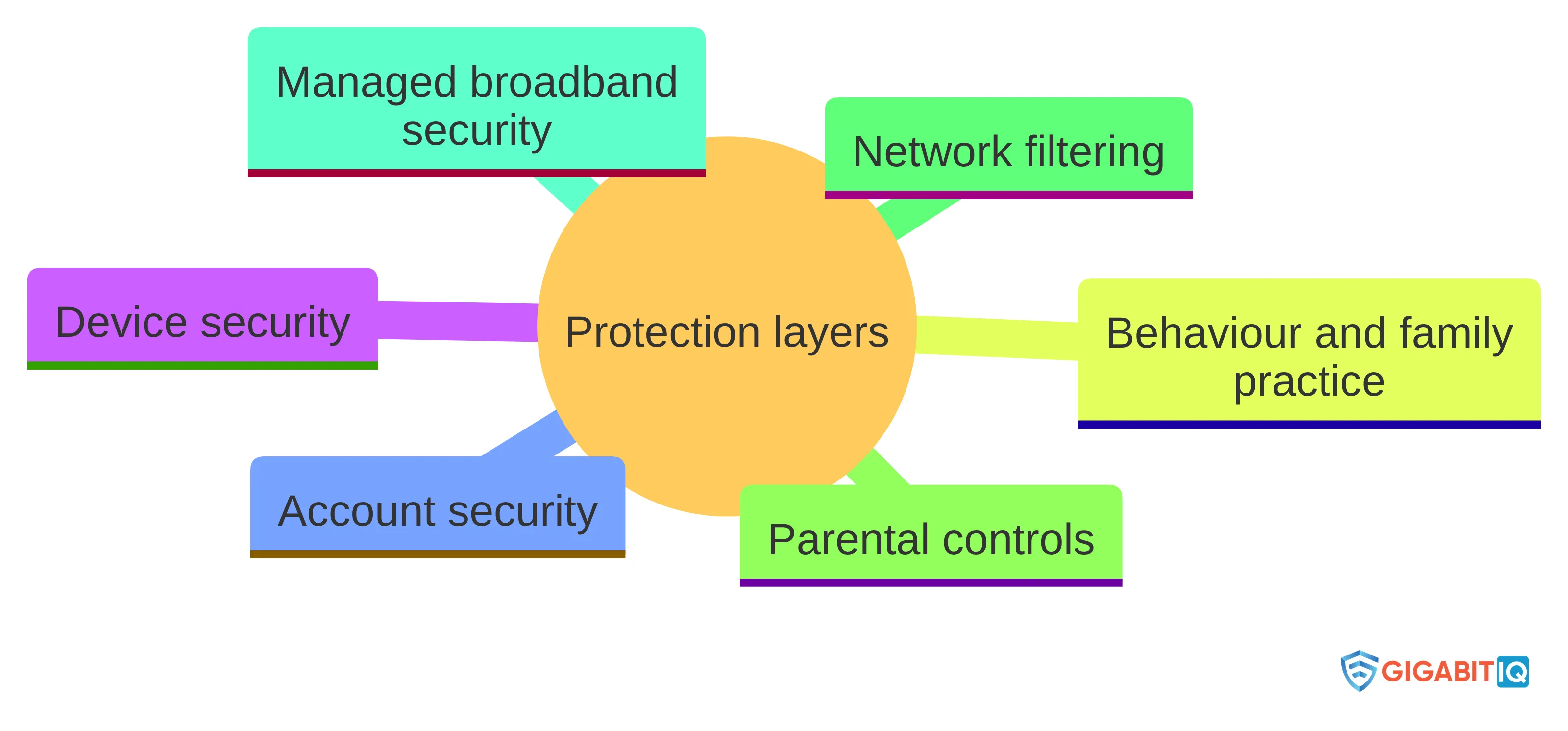
The six protection layers below give you a practical way to separate different jobs instead of treating every control as interchangeable. Each layer has a different place in your household setup and a different boundary.
| Protection layer | What it is for | Where its boundary sits | Question for your household |
|---|---|---|---|
| Device security | Updates and settings applied to a phone, computer, console or connected device | The individual device and its installed software | Which devices need their own updates or settings managed? |
| Account security | Access choices and settings attached to an account or online service | The account, profile or platform | Which account or service controls the activity you are concerned about? |
| Behaviour and family practice | Agreed ways to use devices, links, downloads, apps and personal information | The decisions people make while using technology | What does your household expect people to do or avoid? |
| Parental controls | Boundaries for a child’s access, content or time | The device, account, app or service where the control is applied | Is the boundary tied to the child, the device, the app or the home connection? |
| Network filtering | A boundary applied as activity passes through a network connection | The network route covered by the filter | Does the activity use the network where the filter operates? |
| Managed broadband security | A provider-managed protective layer for connected devices using the home network | The managed home connection and the devices reached through it | Which connected-device gap is this service intended to help cover? |
These layers can overlap, but overlap does not make them identical. A device update deals with software on that device. A family rule deals with behaviour. A home-network service deals with the connection and the connected equipment within its stated scope. Your decision becomes clearer when you record the job before you compare the product name.
The NCSC advises installing the latest software and app updates because they contain important security fixes that help protect devices from cyber criminals. That is a device-level practice. It does not tell you which parental boundary to use, and it does not turn every connected appliance into a managed device.
The NCSC also provides guidance on securing devices, safeguarding personal data and staying secure online. Use that broad guidance as a baseline for your own actions. Then assess any broadband feature as an added layer with a defined purpose, not as a substitute for every other layer.
A useful test is simple: if you remove the name of the feature, can you explain what it covers, where it operates and what remains for you to manage? If you cannot, the feature description is not yet a decision criterion.
Keep device, account and behaviour basics in place
Your household’s basic security practices remain part of the plan even when a broadband package includes extra protection. Treat updates as a recurring household task rather than something a router can perform for every device.
Use this three-part baseline:
- Device: identify who is responsible for updates and settings on each phone, computer, console and connected appliance. Record support end dates for smart devices where that information is supplied.
- Account: identify which account, profile or platform controls each activity. Keep the account layer in your plan instead of assuming that a network control can manage service-specific settings.
- Behaviour: agree what your household does with links, downloads, new apps, personal information and unexpected messages. Put the rule into words that children and adults can apply during ordinary use.
This baseline is also useful for spotting a gap. If a device cannot receive updates, the issue is different from a child needing a time boundary. If a concern belongs to one app or account, the network layer may not be the place where the relevant setting lives. If your concern involves a connected camera or thermostat, the device should appear in your inventory even if nobody uses it as a screen.
The NCSC provides guidance on securing devices, safeguarding personal data and staying secure online. You can use that guidance to organise your household actions, while keeping the responsibilities clear: device settings belong with the device, account settings belong with the service and family rules belong in your shared routine.
A managed broadband feature can add coverage around the home connection, but it does not remove the need to know which devices you have, which accounts are in use and which habits your household has agreed. Keep those three basics visible before you decide whether another layer fills a genuine gap.
Treat parental controls and filtering as defined boundaries
Parental controls and network filtering are boundaries, not complete descriptions of your child’s online experience. A parental control may set a time or content rule for a child, device, account or service. A network filter applies its boundary to activity that passes through the network where the filter operates. Start by identifying which of those locations matters to your household.
At Gigabit IQ, FamilyGuard+ lets parents block risky websites and set screen-time limits. It also allows you to set screen-time limits and block inappropriate content in real time. Those are defined control functions: they give you particular boundaries to assess, rather than a general promise that every online risk is removed. FamilyGuard+ is also described as working over any broadband provider, so its relevance can be considered separately from a full-fibre switch.
Use these questions before relying on a control:
- Is the rule attached to the child, the device, the account, the app or the home network?
- Does the rule cover the devices your child actually uses?
- Does it apply at the times and locations that matter to your family?
- Is the concern a website, an app, social media, a screen-time routine or something else?
- What happens when the device uses another connection?
- Who will notice a setting that is too broad, too narrow or no longer suitable?
The useful way to read that description is by separating the intended jobs. Content and time boundaries belong to the parental-control discussion; connected-device security belongs to the network-security discussion.
Choose the layer that matches the boundary you want to create. Keep the rest of your household plan visible.
Add managed broadband security for connected-device coverage
Managed broadband security is most relevant when your gap concerns connected devices using the home network. Smart TVs, cameras, speakers, thermostats and connected appliances may not be handled in the same way as a child’s phone or an account on a particular platform. A managed network layer gives you a separate place to assess that part of the home.
CyberGuard+ is intended to place a protective layer between your connected devices and bad actors, helping stop threats before they reach those devices. The wording matters: the service is designed and intended to help with a defined network-security role. It is not a promise that every device, account or behaviour concern disappears.
We offer fully managed Wi-Fi, FamilyGuard+ parental controls and CyberGuard+ cybersecurity features. These services relate to different parts of the household decision:
- Managed Wi-Fi concerns the management of the home wireless environment.
- FamilyGuard+ concerns parental boundaries such as risky websites, screen time and inappropriate content.
- CyberGuard+ concerns a whole-home network layer designed to help protect connected devices.
Use your inventory to decide whether that distinction matters. If your main concern is a child’s screen-time routine, start with the parental-control requirement. If your main concern is an internet-connected camera, thermostat or television that sits on your home network, assess the managed security layer. If the concern is an account or device setting, keep that responsibility in the corresponding layer.
The NCSC’s description of smart devices includes both specialist products and ordinary household equipment. That breadth is why connected-device coverage deserves its own question in a broadband comparison. It also explains why you should not judge a service by its label alone: identify the equipment and route it is intended to cover, then keep the other layers in place.
Check a broadband security feature against the household’s gap
Your broadband security decision should begin with the household gap, not with a feature count. A long list is useful only when you can connect each item to a device, route, boundary or responsibility in your home.
Use this six-point check:
- Coverage: Which devices or activities need attention? Name them rather than writing “everything”. Include connected equipment that is easy to forget.
- Location: Does the concern sit on a device, account, app, home network or family routine? Choose a control that operates in that location.
- Purpose: Is the desired boundary about harmful content, risky websites, screen time, risky apps and social media, or threats directed at connected devices? Keep those purposes separate.
- Reach: Does the control apply to the devices and routes your household actually uses? Mark home-only and away-from-home activity separately.
- Responsibility: Which actions remain with you, such as applying device updates, managing accounts or agreeing household rules? Write them beside the managed feature rather than leaving them implied.
- Fit: Does the service description address the gap you identified without requiring you to treat it as a complete answer?
A simple worksheet can make the comparison concrete:
- Household gap: write the concern in one sentence.
- Affected device or service: name the equipment, account or platform.
- Required layer: select device, account, behaviour, parental control, filtering or managed broadband security.
- Boundary: write where the control starts and stops.
- Remaining action: record what you still need to manage yourself.
Use those descriptions against your worksheet rather than treating either name as a universal answer.
Package pricing may change depending on the wholesale provider and your location. That is a condition of the package information, not a reason to assign a security capability that has not been described. Keep availability, package choice and security coverage as separate parts of your decision.
Separate independent guidance from Gigabit IQ’s service description
Independent guidance and a provider’s service description answer different questions, so you should keep them separate when assessing home protection. Independent guidance helps you organise your own actions. A service description tells you what a particular offering is intended to provide.
For this decision, focus on the NCSC’s advice about device and app updates. Its advice about installing the latest software and app updates addresses a household practice: updates contain important security fixes that help protect devices from cyber criminals. That guidance applies to the way you manage your devices, regardless of which broadband package you use.
FamilyGuard+ lets parents block risky websites and set screen-time limits, and it is described as working over any broadband provider.
These statements should not be blended into a single promise. The NCSC guidance does not establish what Gigabit IQ’s products include. Gigabit IQ’s service descriptions do not replace the NCSC’s general device and online-security guidance. Your decision should preserve both parts:
- Keep independent household practices, including device and app updates, in place.
- Treat each Gigabit IQ feature as a defined service layer with a stated purpose.
- Match the feature to the device, route or family boundary you identified.
- Keep any responsibility that remains with you visible in the household plan.
This separation also helps you read time-sensitive information properly. Judge the service against your gap, not against a general impression created by a security label.
What built-in security cannot replace
Built-in broadband security cannot replace the parts of household protection that sit outside its defined network role. A service designed to help protect connected devices through your home connection does not become a device-update plan, an account-management plan or a family agreement simply because it is included with broadband.
Keep these responsibilities separate:
- Device care: apply software and app updates as part of your normal device routine. The NCSC advises this because updates contain important security fixes.
- Connected-device awareness: keep cameras, televisions, speakers, thermostats and appliances in your inventory instead of assuming that only phones and computers matter.
- Account and platform settings: manage controls where the relevant account, app or service operates.
- Family boundaries: agree how children use devices, what access limits mean and who will review the arrangement.
- Route awareness: distinguish activity on your home Wi-Fi from activity that travels through another connection.
CyberGuard+ is intended to place a protective layer between connected devices and bad actors, helping stop threats before they reach those devices. FamilyGuard+ is intended to help with boundaries such as risky websites, screen time and inappropriate content. Those intended roles are useful only when they match the gap you identified.
The practical boundary is clear: choose a managed feature for the part of the home it is designed to address, then retain the device, account and behaviour practices that sit elsewhere. If your concern is outside the stated network or parental-control boundary, record it as a separate action rather than assuming that built-in security covers it.
Decide whether Gigabit IQ’s safer-internet approach fits
Gigabit IQ may be relevant when your decision includes both home-network coverage for connected devices and clear online-safety boundaries for children. We also offer fully managed Wi-Fi, FamilyGuard+ parental controls and CyberGuard+ cybersecurity features.
Use this final fit check:
- You have listed the devices and services used in your home, including connected equipment.
- You know whether each concern belongs to a device, account, behaviour, parental-control, filtering or managed broadband layer.
- You want CyberGuard+’s intended whole-home network role for connected devices using the Gigabit IQ Wi-Fi router.
- You want FamilyGuard+’s described boundaries for risky websites, screen time or inappropriate content.
- You are keeping device updates, account settings and household rules in place.
- You understand that a feature’s purpose and coverage should be matched to your gap rather than treated as protection against every possible problem.
Gigabit IQ’s package pricing may change depending on the wholesale provider and your location. Keep that condition alongside the package choice, while judging the security side by the coverage you actually need. If your household is comparing safer home broadband and the service descriptions match the gaps on your map, the next practical step is to look at the available package options.
Individual suitability depends on your household’s devices, routines, location and requirements. A qualified professional can help decide any individual suitability question that needs professional judgement.
What should families ask before reviewing safer broadband packages?
What is cyber security in the context of a family home?
Cyber security for a family home involves managing settings, habits, and services to protect connected devices, accounts, and online activities. It includes various layers of protection rather than a single solution.
How can I evaluate built-in broadband security features?
When evaluating broadband security features, consider the specific devices and activities that need protection, the location of the concern, the purpose of the security feature, and what responsibilities remain with you.
What are the functionalities of FamilyGuard+?
FamilyGuard+ allows parents to block risky websites, set screen-time limits, and manage content access in real-time, providing specific boundaries for children’s online activities.
How does the NCSC recommend securing devices in a home?
The NCSC advises installing the latest software and app updates, safeguarding personal data, and following best practices for online security to protect devices from cyber threats.
What should I check before selecting a broadband package with security features?
Before selecting a broadband package, assess whether the security features match your household’s specific needs, including the types of devices used and the online activities that require protection.


