Start by identifying what has actually failed
Weak home Wi-Fi does not always mean that the wireless signal needs boosting. Most Wi-Fi problems fall into one of three groups: a device issue, a router or network problem, or an internet service provider outage. Identifying the group first stops you spending money on an extender when the real problem is the phone, router, connection or service outside your home.
A useful first distinction is the difference between poor coverage and no internet access. A device that shows “connected but no internet” usually points to a router or DNS issue rather than a weak signal. Treat that message as a connection problem first, not proof that you need more wireless range.
Your home’s layout also matters. Distance, walls and other obstructions can weaken coverage, while nearby appliances, wireless devices and networks can create interference. A busy household can expose the limits of the existing setup, particularly when many devices need to connect at the same time. Start with diagnosis, then change one factor at a time so you can tell which action affected the result.
Use the affected devices as your first test
The affected devices provide the quickest first test for a weak Wi-Fi complaint. Check whether the problem affects one phone, laptop, tablet or television, or whether several devices lose access in the same area. The pattern helps separate a device fault from a router, network or internet service problem.
If only one device is offline, restart that device, forget the Wi-Fi network and rejoin it. This sequence addresses the device’s connection before you change the household network. Test the same device again in the original location after it reconnects.
If every device is offline, unplug the router and modem for 30 seconds, then reconnect them and check for an internet service provider outage before assuming a hardware fault. This is a different route from a single-room dead zone. A restart may restore a network problem, but it will not change the physical reach of the wireless signal.
Use this short test before buying equipment:
- Test two devices in the same weak location.
- Test one affected device close to the router.
- Check whether the problem follows the device or stays in the room.
- Note whether the device says it is connected but has no internet.
A problem that follows one device needs a device-focused fix. A problem that stays in one area needs a coverage-focused investigation.
Use those observations to separate a local coverage pattern from a wider connection problem. If more than one device has trouble in the same area, the location is a stronger lead than any single handset or laptop. If one device has trouble in several locations, stay with device-focused checks. If devices fail both close to the router and in the usual weak area, return to the router, network or ISP route. A “connected but no internet” message belongs in the connection branch even when it appears in a room that also has weak coverage. This does not prove one cause; it tells you which test to run next and helps avoid buying equipment before the fault is clearer.
Check the router’s position before buying anything
Router position is a practical place to start because the router’s surroundings affect the signal before any extra equipment is involved. Move the router away from obstructions and possible interference sources rather than hiding it behind furniture or placing it beside equipment that may affect wireless signals.
Keep the router away from metal objects, appliances, mirrors, windows and water pipes, as well as other wireless devices or nearby networks that may cause interference. The aim is not to find a perfect position for every house; it is to remove obvious barriers and sources of competing signals.
Use a simple repositioning sequence:
- Move the router out from enclosed furniture or a corner.
- Separate it from appliances and other wireless equipment.
- Remove nearby metal, mirrors or other large obstructions where practical.
- Reconnect the devices that normally struggle in the home.
- Test the same rooms again before making another change.
A better router position may address a local coverage problem. It cannot repair an ISP outage or a device that cannot connect properly.
Optimise the existing Wi-Fi settings
Some routers can optimise Wi-Fi performance automatically, including by choosing a less congested channel. Check the router’s available settings and use automatic optimisation if that option is provided. Manual channel configuration may also be available if you have the technical knowledge to change it confidently.
Router optimisation is different from adding coverage equipment. It changes how the existing wireless network operates; it does not create another access point in a distant room. Use it after checking the router’s position and before deciding that a dead zone requires an extender or mesh system.
Make one settings change at a time and record what you changed. If the router offers automatic channel selection, let that feature handle the choice. If the setting is manual and you are unsure what it controls, leave it unchanged and move to a supported equipment or assessment option rather than guessing.
Test the home again after each change
A repeatable test tells you whether a change addressed coverage, connection or device behaviour. Use the same room, the same device and a similar household situation after each adjustment. Without that consistency, a temporary outage or a quieter network can look like a successful Wi-Fi fix.
Follow this order:
- Test the device close to the router.
- Test it in the room where the problem normally appears.
- Test another device in that room.
- Record whether the issue is weak coverage, disconnection, or “connected but no internet”.
- Keep the change only if the result is useful and repeatable.
If the close-to-router test works but the distant-room test fails, investigate coverage. If both locations fail, return to the device, router or ISP checks rather than adding an extender.
Household demand belongs in the test as well. Mesh guidance describes mesh systems as better equipped to handle numerous connected devices simultaneously, while extenders can struggle with many connected devices. If the problem appears only when several people are streaming, working, gaming or using calls, record that pattern before choosing equipment. Do not treat a busier network as proof that a faster broadband package alone will improve wireless coverage.
Keep a short record of the result in terms that can be compared: the room tested, the device used, whether another device behaved similarly, and whether the symptom was weak coverage, a disconnection or no internet. Add the household condition, such as whether several devices were in use, and note the change made before the test. This record helps distinguish a result that follows the room from one that follows the device. It also gives provider support or a Wi-Fi assessment a clearer starting point if the problem remains, without assuming in advance whether equipment or broadband is responsible. Repeating the same notes after each change makes it easier to stop when an adjustment is useful and avoid confusing a temporary change with a reliable improvement.
Choose an extender for a contained dead zone
A Wi-Fi extender is a focused option when one weak spot needs additional coverage, particularly on the same floor. An extender connects to the router by Ethernet cable or wirelessly and repeats the Wi-Fi signal in another location. It is an equipment choice for a contained coverage gap, not a general answer to every home-network fault.
Place a Wi-Fi extender about halfway between the router and the area with a poor signal. After installation, test the original weak spot rather than judging the result from the extender’s lights alone.
Extenders can extend coverage, but they may affect data speeds and how responsive the connection feels. They can also interfere with other devices or the existing router, slow the connection and require careful positioning. If a single network name matters to your household, check the arrangement before relying on it: an extender may require manual switching between network names.
Choose an extender when the problem is one contained weak spot and you can position the equipment about halfway between the router and that spot. If the home has several weak rooms, multiple floors or frequent connection changes, compare mesh instead of adding extenders one after another.
Choose mesh for broader or multi-floor coverage
A mesh system is a broader coverage option for multiple rooms or floors. A mesh network uses multiple devices working together to create a single Wi-Fi network throughout the home, rather than relying on one separate repeater to reach a particular dead zone. That makes it a different approach from solving one isolated weak spot.
Mesh nodes can let devices roam under one network name, while an extender may require manual switching between network names. Mesh systems also manage traffic across interconnected nodes. These features can make a multi-room arrangement easier to manage, but they do not remove the need to position the nodes sensibly or test the rooms where your family actually uses Wi-Fi.
Mesh is the more relevant option when:
- Several rooms have weak coverage.
- The problem crosses floors.
- Devices move between rooms during calls, gaming or streaming.
- Many devices need to connect at the same time.
- You want one network name rather than managing separate extender connections.
Choose a mesh system only when the wider coverage and network-management benefits justify using multiple devices. A mesh system cannot make your underlying internet connection faster than the speed supplied by your ISP.
Mesh systems generally cost more than extenders and take more effort to set up initially because they use multiple devices. That trade-off matters in a smaller home with one dead zone. For broader coverage, compare the extra setup and cost with the pattern you recorded during testing, rather than choosing equipment by label alone.
Balance equipment benefits against its trade-offs
The choice between an extender and mesh depends on the shape of the problem, the way your household uses Wi-Fi and the amount of equipment you are prepared to set up. Neither option should be judged only by its advertised range. Coverage, speed behaviour, network switching, device demand, cost and setup effort all belong in the decision.
| Question | Wi-Fi extender | Mesh system |
|---|---|---|
| Coverage pattern | Suited to a small, specific dead zone | Suited to broader coverage across rooms or floors |
| Speed behaviour | Can reduce available speed because part of its bandwidth communicates with the router | Manages traffic across interconnected nodes, but cannot increase the ISP’s underlying internet speed |
| Network name | May require manual switching between network names | Can let devices roam under one network name |
| Positioning | Needs careful placement, about halfway between the router and weak area | Uses multiple nodes that need planned placement |
| Connected devices | May struggle when many devices are connected | Described as better equipped to handle numerous connected devices simultaneously |
| Cost and setup | Generally lower cost and simpler for a contained gap | Generally higher cost and more demanding initial setup |
The table compares general equipment characteristics. Your result still depends on the layout, wiring, existing router and household use.
Use an extender when one room is the clear problem and a lower-cost, smaller intervention fits the household. Use mesh when coverage must span several rooms or floors and you value one network name and coordinated nodes. If the underlying broadband connection is slow or unavailable, neither choice fixes that service-level problem.
An equipment decision is easier to review when you set the problem boundary first. Write down whether the target is one room or several, whether the devices need to move between rooms, and whether the household can accept separate network switching and a more involved setup. Then compare the likely intervention with that boundary: an extender is a contained intervention, while mesh is a coordinated multi-device arrangement. If the wireless route remains difficult, powerline introduces the separate question of electrical wiring. If the boundary cannot be described clearly, an assessment is more appropriate than selecting equipment by its advertised category.
Consider powerline only when the wiring is suitable
Powerline adapters use your home’s electrical wiring to send data around the house. One adapter connects to the router with an Ethernet cable, while another connects to a device by cable or Wi-Fi. This gives you an alternative to repeating a wireless signal through a difficult area.
Powerline performance depends on the electrical wiring in your home. Consider it when wiring offers a practical route and wireless interference or difficult placement makes an extender less attractive.
Ofcom advises buyers to choose Wi-Fi extenders and powerline adapters carrying the CE mark. Check the marking before buying either type of equipment. Then test the rooms and devices that matter to your household instead of assuming that a connection at the adapter proves useful coverage everywhere.
Know when home troubleshooting is no longer enough
Persistent coverage problems need a different response when repositioning, router optimisation and a carefully tested equipment choice have not resolved the pattern. A continuing dead zone, repeated disconnections or a household that cannot maintain useful connections across several rooms may justify a Wi-Fi assessment rather than more trial and error.
We provide a professional Wi-Fi Optimisation Visit designed to improve Wi-Fi performance. During the visit, our technician uses a specialist Wi-Fi scanning app to map signal strength in every room. That gives you an assessment-led route when the problem depends on the layout or behaviour of your particular home.
Use the symptom to choose the next route:
- If one device fails everywhere, return to device troubleshooting.
- If one room remains weak after router repositioning, assess an extender or powerline option.
- If several rooms or floors remain weak, compare mesh with a Wi-Fi assessment.
- If the coverage pattern is still unclear, use a professional assessment rather than repeatedly buying equipment.
This keeps a service-level fault, a device fault and a coverage fault as separate decisions.
A Wi-Fi assessment and a broadband change are not the same action. An assessment examines wireless performance inside your home. Provider support is relevant when the whole connection is offline or the issue points outside the wireless coverage question. Start with the route that matches the symptom you recorded.
Before seeking support, prepare a concise description of the pattern rather than only reporting that the Wi-Fi is weak. Note which rooms are affected, which devices were tested, whether the same device works close to the router, whether another device shows the same behaviour, and whether the whole home was offline. Include the changes already tried, such as router repositioning, settings optimisation or equipment testing, and record what happened afterwards. This information does not diagnose the fault by itself, but it helps keep the conversation focused on device, coverage, network or ISP possibilities. It also reduces the risk of choosing a broadband change when the unresolved issue is inside the home, or buying more equipment when the wider connection needs attention.
Separate Wi-Fi performance from family online safety
Wi-Fi coverage and online safety solve different household problems. A stronger signal can help devices connect in more parts of the home, but signal strength does not by itself provide parental controls or cybersecurity features. Keep those decisions separate so a family does not treat a coverage fix as a complete online-safety arrangement.
At Gigabit IQ, we offer fully managed Wi-Fi, FamilyGuard+ parental controls and CyberGuard+ cybersecurity features. These are relevant when you are considering a managed home broadband arrangement alongside the practical Wi-Fi problem. They should be assessed as safety and management features, not as evidence that an extender or mesh node will improve coverage in a particular room.
Use two separate checklists before changing your household arrangement:
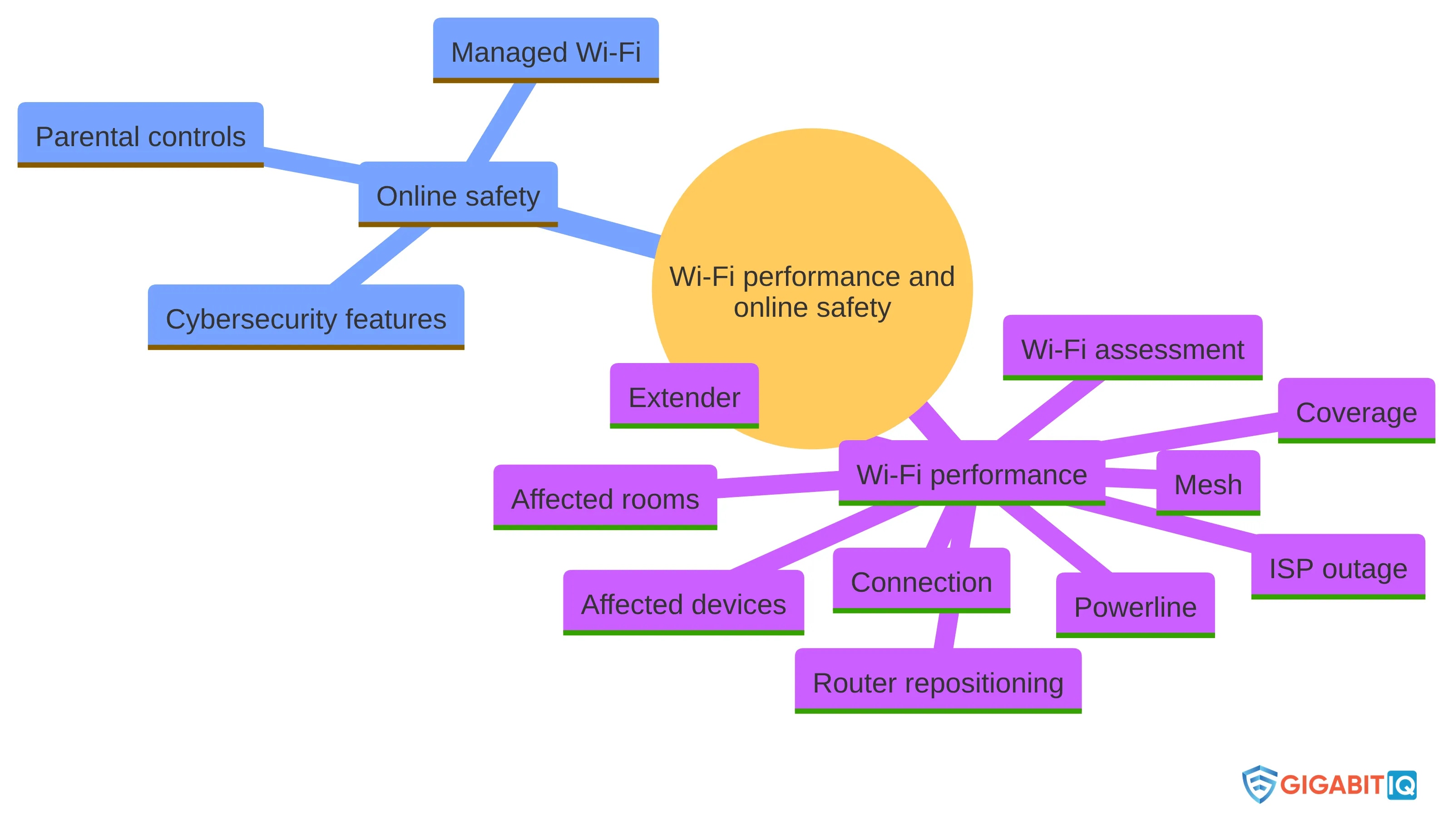
- Wi-Fi performance: Which rooms are affected? Which devices fail? Is the problem coverage, connection or an ISP outage? Would repositioning, an extender, mesh, powerline or an assessment address that pattern?
- Online safety: Do you want managed Wi-Fi, parental controls or cybersecurity features as part of the broadband arrangement?
A household may need one checklist, both checklists or neither. Choose based on the problem you are trying to solve.
Online-safety features do not remove the need to test wireless coverage. Likewise, an extender or mesh system does not answer your family’s separate questions about controls and protection. Keep the performance decision grounded in the home’s signal pattern and keep the safety decision grounded in the features your household wants.
Use a measured next step for your household
The measured way to boost the Wi-Fi signal at home is to diagnose first, improve the existing setup, test the result and only then add equipment or seek help. Check the affected devices, restart the router and modem when the whole home is offline, move the router away from obstructions and interference, and review the available optimisation settings. Choose an extender for one contained weak spot, compare mesh for broader coverage, and consider powerline only when your wiring makes it suitable.
If the problem persists, a qualified professional can decide what is suitable for your home after assessing its layout and symptoms. We provide a professional Wi-Fi Optimisation Visit, and we offer fully managed Wi-Fi, FamilyGuard+ parental controls and CyberGuard+ cybersecurity features for households considering a broader managed arrangement. Choose the next step that matches the gap you found, rather than treating every weak signal as a reason to replace the whole service.
What should families check before seeking Wi-Fi support?
What are common reasons for weak Wi-Fi at home?
Weak Wi-Fi can be caused by distance from the router, obstructions like walls and furniture, interference from other devices, router positioning, and high network demand from multiple connected devices.
How can I improve my Wi-Fi signal without buying new equipment?
Start by repositioning your router away from obstructions and interference sources, optimizing its settings, and testing the network after each change to see if coverage improves.
When should I consider using a Wi-Fi extender?
A Wi-Fi extender is suitable when you have a specific weak spot in your home that needs additional coverage, particularly on the same floor.
How do I know if I need a professional Wi-Fi assessment?
If you’ve tried repositioning your router, optimizing settings, and using extenders or mesh systems without resolving persistent coverage issues, a professional assessment may be necessary to identify layout or equipment problems.
What should I consider regarding online safety when improving my Wi-Fi?
While boosting Wi-Fi signal strength can help with connectivity, it does not provide online safety features. Consider separate solutions like parental controls and cybersecurity measures alongside your Wi-Fi improvements.
What are powerline adapters and when should I use them?
Powerline adapters use your home’s electrical wiring to transmit data. They can be a good option if wireless signals are weak in certain areas, but their effectiveness depends on the quality of your home’s wiring.


