
Parental blocking sets a boundary, not a guarantee
Parental blocking is a set of restrictions designed to help you limit your child’s access to inappropriate or age-inappropriate online content. Depending on the control you choose, it may also set usage times or show activity within a particular service. Those functions vary by device, app, platform and network, so “parental block” does not describe one universal switch.
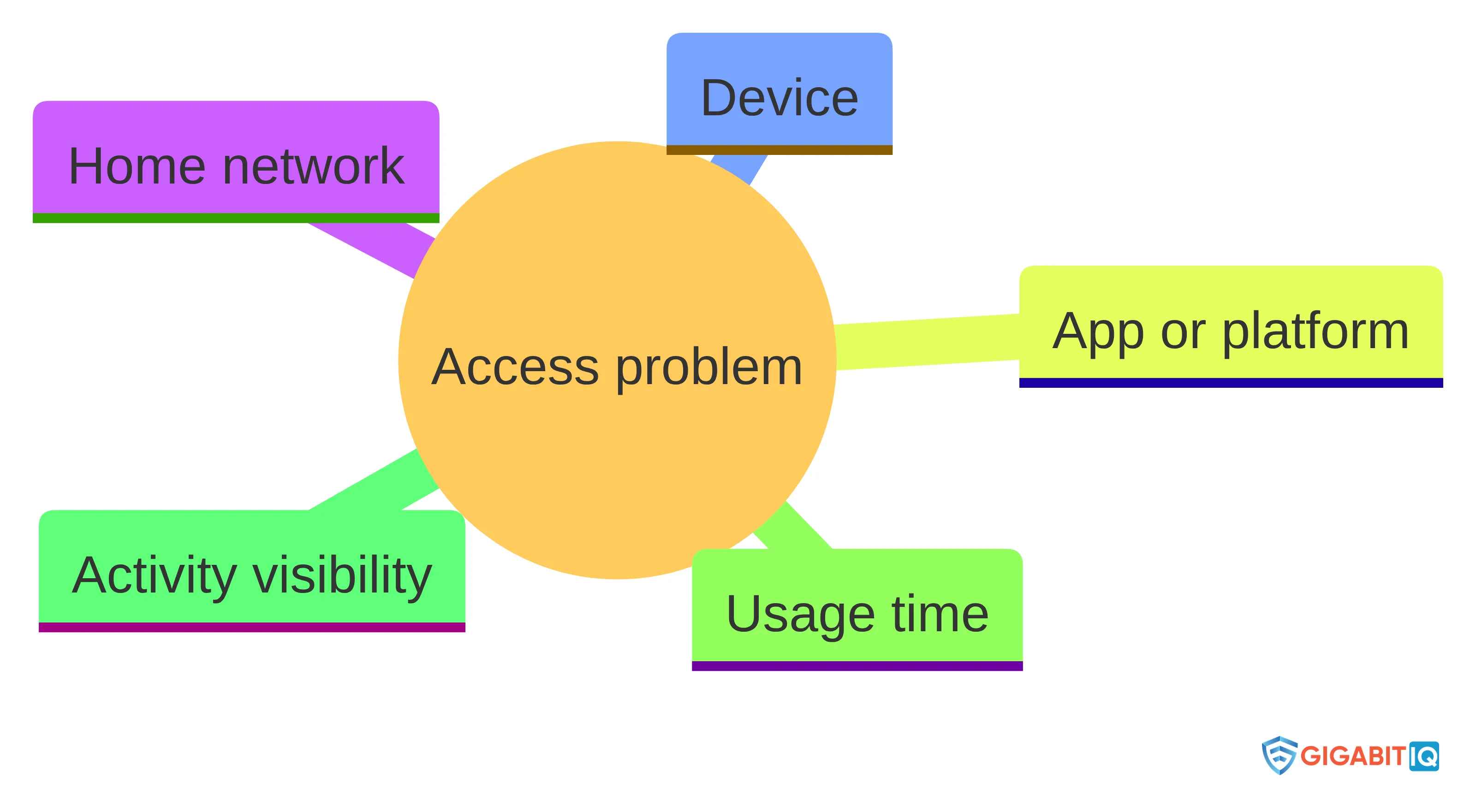
The most useful way to think about parental blocking is as a boundary around a particular access route. A home-network control can apply to devices using your household Wi-Fi. A device setting can remain relevant when the device leaves home. An app or platform setting can govern activity inside one account or service. Each boundary answers a different question.
Parental controls cannot guarantee that your child will never encounter unsuitable material, bypass a restriction or use an unprotected device or network.
Use blocking to support a family rule, not to replace one. Treat the settings as something you explain, test and review rather than something you configure once and forget.
What a parental block can cover—and where it stops
The boundary is easiest to understand by asking what the control can see and affect. A home-network or router control can cover devices connected to that network, but it may not follow a device to mobile data or another Wi-Fi network. Because web traffic is encrypted, router filtering generally works at domain level rather than seeing the contents of individual pages. Network controls can work at a service level, but they cannot identify every individual video or server a child uses.
Device controls can add a boundary that belongs to the device rather than the home connection. On supported Android devices, Google Family Link can manage app access, set screen-time limits and add device bedtimes remotely. Many devices, apps and websites provide parental controls in their settings, with instructions from the relevant manufacturer or service provider. TikTok Family Pairing lets parents and teenagers customise teen-account settings after their accounts are linked.
A control’s coverage depends on the device, account, service, network and setting involved. Its limits also include what activity it can show, whether its content categories suit the child’s age, and what happens when the device leaves the home network. These boundaries matter more than the label attached to the setting.
A parental block can also end when access changes.
Use the network layer for the home connection
The home-network layer applies a parental boundary to devices connected through your household Wi-Fi. That makes it useful when several phones, tablets, computers or connected devices share the same connection and you want one place to manage broad access rules.
Network-level controls can cover devices on the home network, but they may not follow a device onto another network. A router cannot control a device after it switches to mobile data or connects to Wi-Fi at a friend’s house, school, library or another location. This limitation matters in both urban and rural households because the boundary is created by the connection, not by your child’s physical location alone.
Network filtering also has a defined level of visibility. Network controls can work at a service level, but they cannot identify every individual video or server your child uses. A rule that blocks or allows a service is therefore different from a rule that assesses each piece of content inside it.
Use the network layer when your main problem is shared home access. Ask three practical questions before relying on it:
- Which devices are actually connected to the home network?
- Does the boundary apply to the service or domain you want to manage?
- What happens when your child uses mobile data, another Wi-Fi network or a different device?
The third question is not a reason to discard home-network controls. It is the reason to pair them with another layer when your child’s routine regularly extends beyond your Wi-Fi.
Add device controls when access travels beyond the home
Device controls matter when your child uses a phone, tablet or other personal device beyond the reach of your home connection. A router cannot apply its rules after the device switches to mobile data or joins another Wi-Fi network, so an on-device boundary may address the gap more directly.
The relevant manufacturer or service provider supplies setup instructions for its controls, and the exact features depend on the device and service you use. Check the particular device rather than assuming that a setting available on one operating system appears in another.
Device controls can address more than content. They may help you manage which apps are available, when the device can be used and whether access continues at bedtime, where those functions are supported. They still do not create a complete boundary if your child can use another device, another account or a service that sits outside the setting you configured.
Use a short device check before you depend on the control:
- Identify every device your child uses, including an older phone or tablet.
- Confirm which child account and parent account manage the setting.
- Test the boundary on the device rather than assuming that a saved rule is active.
- Check whether the rule remains relevant when the device uses mobile data.
- Explain what the setting changes and agree how you will review it together.
Parental-control apps are more useful when they support an ongoing parent-child conversation. Keep the device layer as part of the wider plan, not as a promise that one handset setting will cover every route your child may use.
Use app, browser and platform settings for service-specific boundaries
App, browser and platform controls are the most direct place to examine a service-specific boundary. Many apps and websites provide parental controls in their own settings, so you can address the account, service or type of content that concerns you without treating every online activity as the same problem.
Platform controls can serve different purposes. Netflix parental controls can restrict what young people watch and show what they have been watching, according to the UK Safer Internet Centre’s guidance. TikTok Family Pairing lets you and your teenager customise teen-account settings after the parent and teen accounts are linked. These examples show why the account relationship and service settings matter: a control inside one platform does not automatically govern another platform.
Browser and web settings belong in the same check, but do not assume that a browser rule reaches every app or device. A website restriction may not describe what happens inside a game, social platform or video app. Conversely, an app’s account settings may not restrict access through a different account or an unprotected service.
Use this service check whenever the concern is specific:
- Name the app, website, game or platform involved.
- Find its parental, privacy, content or account settings.
- Identify whether the setting governs the whole account, one profile or one device.
- Check whether the control covers content, contact, usage time or activity visibility.
- Revisit the setting when your child starts using a new service.
The practical boundary is simple: use platform controls for platform-specific decisions, then check the device and home network for routes around them. Do not treat one service’s setting as a general internet filter.
Check the routes that can bypass a home connection
Bypass routes are the alternative ways your child may reach the internet when a home-network rule does not apply. VPN use can make online access harder to manage and can reduce visibility of online behaviour.
You do not need to treat every possible route as proof that a control has failed. Instead, trace your child’s ordinary routine:
- Start with the home Wi-Fi connection and list the devices that use it.
- Add mobile data, shared hotspots and other Wi-Fi networks your child regularly uses.
- Include school, library, friend’s-house and gaming-device access where relevant.
- Record which controls follow the device, which remain at home and which apply only inside an app or account.
- Discuss why a boundary exists before you respond to a workaround.
A router cannot control a device on mobile data or another Wi-Fi network. Network controls also work at a broader service or domain level, so they cannot identify every individual video or online server. Those limits are practical consequences of the layer you selected, not signs that one setting should cover everything.
Use the device layer for access that travels with a handset where the relevant tool supports it, and use app or account settings for service-specific boundaries. For routes you cannot technically control, use a clear conversation about access, privacy and what your child should do when something feels unsafe. Keep the boundary explicit: home-network controls manage the home connection; they do not manage every connection your child may use.
Compare controls by coverage, clarity and family fit
A control comparison works best when you judge each layer against the same family questions instead of counting features. Coverage, ease of management, transparency, age suitability and resistance to bypassing all matter, but the answer may differ for a younger child using one tablet and an older child moving between home Wi-Fi, mobile data and several services.
| Control layer | Coverage question | Clarity question | Bypass question |
|---|---|---|---|
| Home network or router | Does it cover the devices using your home Wi-Fi? | Does it filter at domain or service level rather than show individual content? | What happens on mobile data, another Wi-Fi network or another device? |
| Device | Does the setting remain relevant when the device leaves home? | Can you see whether it manages apps, usage times or device bedtimes? | Can your child use a different device or alter the device settings? |
| App or platform | Does it govern the relevant account, profile or service? | Does it restrict content, show activity or manage contact settings? | Could the same service be reached through another account or route? |
| Browser or website | Does it cover the browser or website your child actually uses? | Are the available rules clear about what they restrict? | Could an app, platform or different browser provide another route? |
The table is a starting point for questions, not a ranking. Network-level controls can cover devices on the home network but may not follow them elsewhere. Platform settings can be precise for one service but do not automatically cover other services. Device settings can be relevant away from home where the selected tool supports that use, but they still depend on the device and account being managed.
Choose the layer that matches the access problem, then test it in the places your child actually uses the internet. If you cannot explain what the control covers, what it shows and where it stops, treat that lack of clarity as a reason to investigate before relying on it.
Keep privacy, trust and healthy habits in the plan
Family conversations give parental blocking its context. Guidance on parental-control apps also emphasises parent-child dialogue and warns against treating controls as a set-and-forget safeguard.
Explain the boundary in terms your child can understand. Say what you are restricting, where the rule applies and what your child should do if a page, message or video feels unsuitable. This is also a privacy conversation: a network control may see a domain or service without showing the contents of every page, video or conversation. Be clear about that distinction rather than implying that a setting provides complete visibility.
Use age and independence as reasons to review the arrangement, not as reasons to remove every boundary or add every available feature. A younger child may need supervised access and family devices or services, while an older child may need a clearer explanation of account settings, privacy and what happens when access moves beyond the home. The particular decision belongs to your family’s routine and the tools you have chosen.
Set a review point after a meaningful change, such as a new device, new app, more time away from home or a change in bedtime. At each review, ask:
- Does the current boundary still match what you want to restrict?
- Does your child understand what the setting can and cannot show?
- Has access moved to a different network, device or service?
- Is the arrangement supporting balanced use rather than only blocking content?
Keep the conversation open when a control blocks something unexpectedly or fails to cover a new route. Adjust the setting or the family rule together, and keep the technical boundary honest.
Separate general guidance from Gigabit IQ’s FamilyGuard+ option
Gigabit IQ’s FamilyGuard+ option is a provider-specific home-broadband feature, not a definition of parental blocking in general. We offer FamilyGuard+ parental controls through our mobile app, including healthy internet-usage limits, critical-device prioritisation and blocking of inappropriate content.
Gigabit IQ also provides safer broadband for families, including tools to manage screen time, block risky apps and social media, and secure connected devices. These are the features we describe for our safer-broadband offering. They should be considered separately from the controls built into your child’s device, apps, browsers and online accounts.
The practical fit depends on the gap you are trying to close. If your main concern is broad access on devices using your home connection, a provider-level option may belong in your comparison. If your child regularly uses mobile data, another Wi-Fi network or a different device, you still need to examine the controls that apply to those routes. If the concern is one platform or account, inspect that platform’s own settings as well.
Use the same questions for FamilyGuard+ that you use for any home-network option:
- Which devices and services does the home-broadband control cover?
- Which usage limits or content blocks match your family’s stated boundary?
- What remains outside the home connection?
- How will you explain and review the settings with your child?
This keeps Gigabit IQ’s offering in its proper place: a relevant safer-broadband option for the home-network part of your decision, alongside—not instead of—the device, app, browser and family-practice layers that may also be needed.
A parental block has three boundaries
Parental blocking is a control that helps restrict access to inappropriate or age-inappropriate content. Depending on the service, it can also set usage times or monitor activity; those functions vary by service. A block is therefore a rule with a defined boundary, rather than one setting that governs every service.
A simple boundary model has three parts: scope, visibility and reach. Scope is whether the setting acts on content, a service, activity or time. Visibility is what it can see: because web traffic is encrypted, router filtering generally works at domain level rather than seeing the contents of individual pages. Network controls also work at a broader service level; they cannot identify every individual video or server within a service.
Reach is where the setting applies. A home-network control may cover devices on that network, but it may not follow a device using mobile data or another Wi-Fi network. Children may try to bypass controls by switching networks or devices, using a VPN, or changing device settings such as DNS. VPN use can make online access harder to manage and reduce visibility of a child’s online behaviour.
General guidance is separate from provider-specific features. Gigabit IQ’s FamilyGuard+ parental controls are offered through its mobile app and include healthy internet-usage limits, critical-device prioritisation and blocking of inappropriate content. Gigabit IQ also provides safer broadband for families, including tools to manage screen time, block risky apps and social media, and secure connected devices. The available coverage still depends on the service and setting in use.
Parental controls can sit alongside an ongoing conversation about access and privacy; they are not a set-and-forget safeguard. Many devices, apps and websites provide parental controls in their settings, with setup instructions from the relevant manufacturer or service provider.
What should parents check before exploring safer broadband?
What is parental blocking and how does it work?
Parental blocking refers to a set of restrictions designed to limit a child’s access to inappropriate or age-inappropriate online content. It can involve various controls at different levels, such as network, device, app, and platform settings, but it does not guarantee complete protection against unsuitable material.
What types of parental controls are available for managing internet access?
Parental controls can be implemented at multiple layers, including network-level controls for home Wi-Fi, device-specific settings for phones and tablets, and app or platform controls for individual services. Each layer addresses different aspects of online access.
How can I evaluate the effectiveness of different parental controls?
When evaluating parental controls, consider factors such as coverage (which devices they apply to), clarity (how well you understand what they restrict), and resistance to bypassing (how easily a child might circumvent them). This helps ensure the controls fit your family’s needs.
What should I do if my child uses devices outside the home?
If your child uses devices away from home, it’s important to implement device-specific controls, as network-level restrictions will not apply. Consider using apps like Google Family Link for managing access and setting limits on personal devices.
How can I prevent my child from bypassing parental controls?
To reduce the risk of bypassing, have open conversations with your child about the importance of online safety. Additionally, monitor their usage and consider using controls that detect and block VPNs or other methods of circumventing restrictions.
What is Gigabit IQ's FamilyGuard+ and how does it help with parental controls?
Gigabit IQ’s FamilyGuard+ is a parental control feature that allows users to set internet usage limits, prioritize critical devices, and block inappropriate content through the Gigabit IQ mobile app, providing a tailored approach to managing online safety.
How often should I review my family's internet safety settings?
It’s advisable to review your family’s internet safety settings regularly, especially after significant changes such as new devices, apps, or changes in your child’s routine. This ensures that the controls remain relevant and effective.