
Set up the iPhone before your child uses it independently
Setting up a child’s iPhone safely means completing the account, device and control choices before the phone becomes their independent device. Use the child’s own Apple Account and, where applicable, connect it to your Family Sharing group before handover.
During setup, choose the option to set up the iPhone for a child rather than treating it as an unrestricted adult device. Menu names and available controls can change with the iOS version, so use the labels shown on the iPhone and follow current Apple guidance if a label differs.
The order matters because each choice supports the next one. The account arrangement determines who can manage Screen Time; the passcodes protect the restrictions; the content and communication choices define the boundary; and the final checklist gives you a chance to notice a missed setting before your child uses the phone alone.
These controls support safer use, but they do not replace supervision or conversations about online behaviour. Explain what you have changed, what your child can ask to change, and how they can tell you when something online feels uncomfortable or confusing.
Choose a separate Apple Account and Family Sharing arrangement
Your child should have their own Apple Account rather than sharing an account with another family member. Apple’s parental-control guidance treats the child’s account as a separate account that can be managed through the family group.
If you already use Family Sharing, add your child’s Apple Account to that group before setting up the Family Sharing parental controls. If you do not yet have the account, use the family organiser’s device to start the available child-account process and follow the onscreen prompts. Apple’s account options and age-related requirements can change by region and software version, so enter the details and choices presented for your circumstances rather than copying an old menu route.
Family Sharing is the separate-account arrangement to choose when you want a family organiser or parent or guardian to manage the child’s device from their own device. It does not require family members to share one Apple Account. In the available setup flow, open Settings on the organiser’s iPhone, open Family, choose the option to add a member, and then either invite an existing account or create a Child Account before following the remaining onscreen instructions.
Have the information needed for the account process to hand. Apple’s account instructions ask for the child’s name and birthday and present available account choices during setup, but those choices may differ by region. The supporting account page available for this guidance is a Canadian page, so use the options displayed in the UK setup flow rather than assuming every regional detail is identical.
Before moving on, make three decisions:
- Use a separate Apple Account for your child.
- Add that account to your Family Sharing group if you want to manage the phone through the family arrangement.
- Decide which adult will act as the organiser or parent or guardian responsible for the controls.
If you are not using Family Sharing, you can still manage Screen Time directly on the child’s iPhone with a Screen Time passcode. That is a different arrangement, so do not assume that settings on your own iPhone will manage the child’s phone unless the family account connection has been completed.
Prepare the parent and family devices
Prepare the adult’s iPhone or iPad before you begin the child’s setup. Sign in with the adult’s own Apple Account, open the Family area in Settings, and have the child’s account ready to add or invite. Family Sharing setup can then continue with the onscreen instructions for parental controls and location sharing.
Update the devices in your Family Sharing group to the latest available software before relying on Screen Time settings that are meant to sync across the group. Apple recommends this step for the family devices.
Add the Family Sharing organiser or another parent or guardian to your child’s contacts if you want the child’s requests to be sent for approval. This is a small preparation step, but it connects the communication choice with the adult who needs to receive it.
Keep the adult device available while you configure the child’s iPhone. If Family Sharing is active, the adult device is where Apple’s guidance places the management of the child’s Screen Time and parental controls. You can use the child’s phone for the basic device setup, but do not hand it over until the adult-side controls and passcode arrangement are complete.
A short preparation list helps you avoid stopping halfway:
- Have the adult device available and unlocked.
- Have the child’s separate Apple Account ready, or be ready to create it through the available Family flow.
- Check that the family devices have completed their software updates.
- Decide which adult will manage requests and Screen Time.
- Add that adult to the child’s contacts where the approval arrangement requires it.
Do not begin with an account shared between the child and another family member. Start with the account structure you intend to keep.
Complete the iPhone’s basic setup in the right order
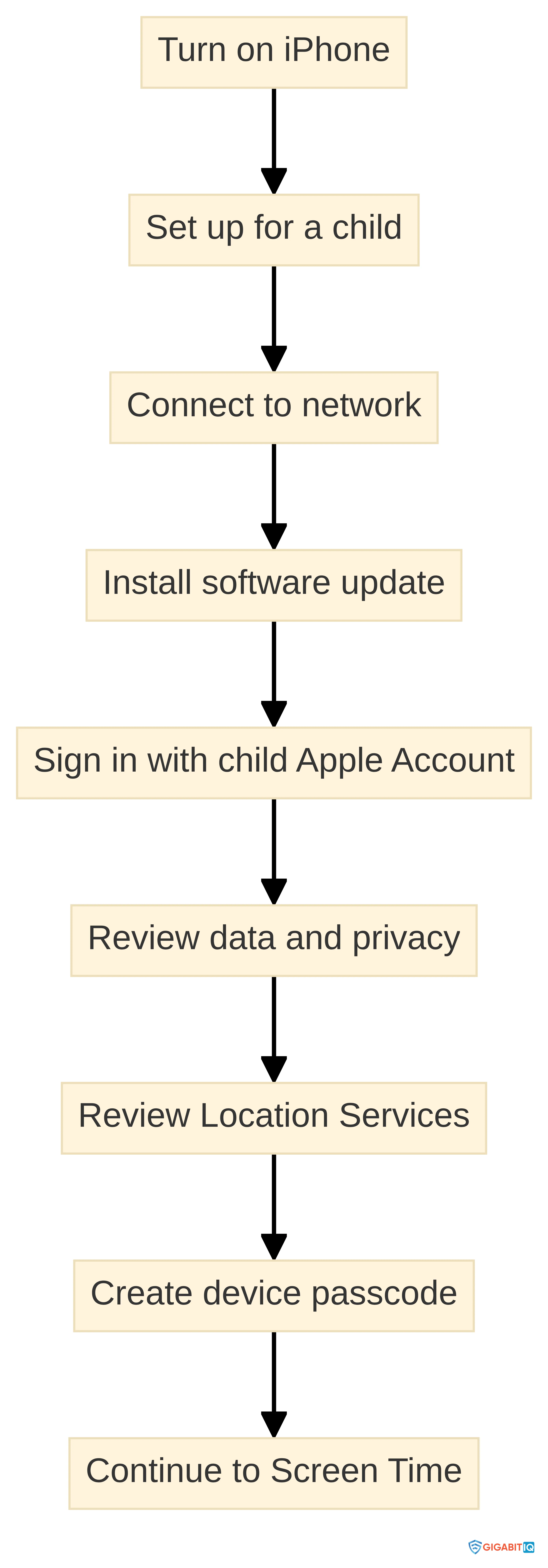
Complete the iPhone’s basic setup before moving to the detailed restrictions. Use this order as a practical guide, while following the options actually displayed by the iPhone:
- Turn on the iPhone and choose the option to set it up for a child.
- If the network or update screen uses different wording, follow the version-specific prompt rather than forcing a fixed tap sequence.
-
- Sign in with the child’s separate Apple Account, or complete the account creation and sign-in steps shown on screen.
-
- Create the device passcode or password lock for the iPhone.
- Continue to the Screen Time stage, but leave the detailed limits and restrictions for the deliberate review in the later sections.
The exact order and labels can change with the software version, so treat the sequence as a checklist of decisions rather than a promise that every iPhone will show identical screens.
If this iPhone replaces another iPhone, decide whether you want to transfer compatible apps, settings and content. Apple’s setup basics describe a wireless transfer in which you place the new and previous iPhones near each other and follow the onscreen instructions. Review what transfers before assuming that a transferred app or setting is suitable for your child; the device still needs its own account and a separate parental-control review.
If the phone is being set up as new, continue without transferring another person’s account or settings. This keeps the child’s account arrangement clear and gives you a clean point from which to review the device passcode, privacy choices, apps and Screen Time controls.
The basic setup is finished when the child can unlock the iPhone, the intended Apple Account is signed in, the network connection works, and the adult can reach the management controls. Do not treat the ability to reach the Home Screen as the end of the setup. It is the point at which you start the safety review.
Decide where to manage Screen Time
Choose the Screen Time management route that matches your account arrangement. When Family Sharing is set up and the child’s account is connected to the family group, Apple’s guidance places the child’s Screen Time and parental controls on the family organiser’s or parent or guardian’s device. This is the route to use when you want the adult to manage the controls from their own iPhone or iPad.
If you are not managing the child’s account through Family Sharing, Apple also describes managing Screen Time directly on the child’s iPhone with a Screen Time passcode. Select that route only when it matches the arrangement you have chosen. Do not configure controls on your own device and assume they apply to the child’s phone without the required family connection.
For a Family Sharing setup, start from the adult device and select the child through the Family area. The available Screen Time and parental-control options may use different labels from the ones shown in older instructions, but the management principle remains clear: the adult device is the control point, and the child’s device is the device being managed.
Keep the adult device signed in to the adult’s own Apple Account. If the child’s name does not appear in the Family area, check the account connection before trying to change individual settings. Apple’s passcode instructions specifically direct the family organiser or parent or guardian to open Family, select the child and then use Passcode & Management when changing a Family Sharing Screen Time passcode.
For direct management on the child’s iPhone, Apple’s documented route is Settings, Screen Time, Passcode & Management, then Lock Screen Time Settings. Enter the four-digit passcode twice when prompted. Exact labels may change, so use the equivalent Screen Time passcode option shown on the device.
Write down the route you chose for your own records, not the passcode itself in a place your child can find. The purpose is to know which adult device or Screen Time screen to return to when you review the arrangement later.
Create a Screen Time boundary the child cannot change
Create the Screen Time passcode from the management route you selected, and keep it separate from the child’s device-unlock passcode. A Screen Time passcode protects the Screen Time settings; it is not the same decision as choosing how the child unlocks the iPhone.
If Family Sharing manages the child’s Apple Account, Apple says the family organiser or parent or guardian must set the child’s Screen Time passcode on the adult’s device rather than on the child’s device. If you are managing Screen Time directly on the child’s phone, use the Screen Time passcode route on that phone.
Choose a passcode your child is unlikely to guess and do not reveal it as part of the handover. The practical boundary is that the child can use the settings you have allowed, while changes to the protected Screen Time arrangement require the adult-controlled passcode.
Turn on Content & Privacy Restrictions after the Screen Time passcode is in place. Apple describes these restrictions as controls for apps, content and settings. They can limit access to selected apps, games, websites and other content, and can prevent changes to important account settings.
Review the setting after you turn it on. A restriction that is selected but not protected by the management route you intended is not ready for handover. Check that the adult device shows the child’s settings when Family Sharing is being used, or that the child’s device asks for the Screen Time passcode when a protected change is attempted.
Decide whether to configure Screen Time Passcode Recovery. Apple says recovery can allow the passcode to be reset with the Apple Account used to set it up, if recovery was configured. Treat the recovery account as an adult-controlled account and keep its sign-in details private.
If you later need to change a Family Sharing Screen Time passcode, use the adult device, open Family, select the child and choose Passcode & Management. When resetting a passcode, Apple says you may need to authenticate with Face ID or the device-unlock passcode and, if requested, enter the Apple Account details used to set up Screen Time.
Configure usage, apps and content for the child’s age
Use App & Website Activity to understand which apps and websites are being used most, then decide what daily structure fits your child. Apple’s overview describes Screen Time Schedules for managing when apps are used and Time Allowances for categories such as entertainment, games and social media.
Start with the parts of the day that need a clear boundary. You might set a schedule around school, bedtime or another agreed period, then use category allowances for activities that can expand without a defined stopping point. The setting is a tool for applying the boundary you have discussed; it is not a substitute for explaining why the boundary exists.
Review the activity information with your child in a calm way. Explain which information you are looking at, what you may change, and how your child can ask for an adjustment. This makes the control part of an agreed routine rather than a hidden test.
Open Content & Privacy Restrictions and work through the categories that match your child’s age and use. Apple describes age-appropriate ratings for apps, music, books, films and television programmes. The same area can include controls for Game Center and Siri, along with privacy settings and other device choices.
Use the available content ratings as a starting point, then check individual apps and services your child is likely to use. A rating choice is not the same as a conversation about the service. Explain which content is allowed, which content is limited, and what your child should do if something inappropriate appears.
Apple says that many Content & Privacy Restriction settings are applied automatically based on the child’s age and can be adjusted later. Review those automatic choices instead of assuming they match your family’s agreement. If a setting is not available or has a different name on your iPhone, use the current option shown on the device rather than relying on an older route.
Review approved apps and websites as separate choices. Apple’s overview lists approved apps and websites, Allowed Contacts, Screen Time Schedules, Time Allowances and Content & Privacy Restrictions among the controls a parent or guardian can turn on. The available controls and names may change with the software version.
For web access, choose the age-appropriate boundary available in the child’s controls and check whether the websites your child needs for school or hobbies remain available. For media, review the separate ratings for apps, music, books, films and television programmes rather than treating one rating as a complete decision for every type of content.
For apps and purchases, read the choices displayed in the current Content & Privacy Restrictions and account settings. Do not assume that selecting an age rating answers every question about downloading, installing or paying for an app. Apply the specific control shown for the action you want to manage, then include that action in the pre-handover test.
Review communication, location and privacy choices
Review communication choices after the account and Screen Time structure is in place. Apple’s overview lists Allowed Contacts among the controls a parent or guardian can turn on. Add the adult responsible for approvals to the child’s contacts, as Apple’s preparation guidance recommends, so the child’s requests can be sent to the person who needs to handle them.
Agree which contacts the child should be able to reach and how they should ask for a change. Then check the displayed contact and communication settings yourself. A communication boundary needs an adult conversation alongside the setting: tell your child who they can contact, what to do if someone unfamiliar contacts them, and how to bring an uncomfortable message to you.
Review Location Services during the iPhone’s basic setup and revisit location sharing through the Family Sharing flow when that arrangement is being used. Apple’s setup and Family Sharing guidance include Location Services and location sharing among the available setup choices.
Choose location settings deliberately rather than accepting every prompt without reading it. Consider which location choice matches your family agreement, then record that decision in your handover checklist. The exact controls and menu labels can vary by software version, so follow the options displayed on the device and review them again if the iPhone is updated.
Use the privacy choices in Content & Privacy Restrictions to review the settings that matter for your child’s apps and device use. Apple describes this area as a place to manage privacy settings, along with apps, content, Game Center and Siri controls.
Work through permissions with your child where the choice affects how an app is used. Explain that an app request is a prompt to make a decision, not an instruction to allow access automatically. If a permission is unclear, leave the setting at the option you understand and return to it after checking the current Apple guidance or the app’s own information. Keep the setting, the reason for it and the review date in your household notes.
Keep iPhone controls separate from household protection
The controls on this iPhone and any broader household or network protection are separate decisions. This setup focuses on the child’s account, this device, its Screen Time arrangement, its content choices, its communication settings and its privacy permissions. You can complete that work without adding another service.
A household or network-level arrangement is a different project with a different question: do you want to define a boundary for other devices or for the home connection as well? Do not treat an iPhone setting as a household-wide decision, and do not delay this device setup while trying to design a wider arrangement. Finish the iPhone first.
Use this boundary to choose your next action:
- If your immediate aim is to prepare this iPhone, complete the account, Screen Time, content, communication, location and privacy checks in this guide.
- If you later need a rule that covers more than this iPhone, list the devices and connections that need to be considered before choosing a separate household approach.
- If the child uses the iPhone away from home, keep the device-level settings and the family agreement in place rather than assuming that a home connection will cover every situation.
The additional layer is optional for completing the iPhone setup. Treat it as a separate decision with its own coverage and review criteria.
No single setting carries the whole responsibility. Device controls can express the boundary you chose for the iPhone, while supervision and conversations address behaviour, context and new situations. Keep those parts visible when you explain the setup to your child.
Run a pre-handover checklist
Use this checklist before your child starts using the iPhone independently. Work through each item on the actual device, not from memory:
- Account: The iPhone uses your child’s own Apple Account, not an account shared with another family member.
- Family arrangement: If you are using Family Sharing, the child’s account appears in the family group and the adult management device can reach the child’s settings.
- Basic access: The child can unlock the iPhone with the device passcode, and the intended network connection works.
- Software: The iPhone and the family devices have completed the available software update process before you rely on synced Screen Time settings.
- Screen Time route: You know whether the adult device or the child’s iPhone is the management point.
- Passcode: A Screen Time passcode is set, kept from the child, and recoverable through the adult-controlled recovery arrangement if you chose to configure one.
- Content and privacy: Content & Privacy Restrictions are on, the chosen app, website, game, media and privacy boundaries are displayed, and account-setting changes are protected where the current controls provide that choice.
- Usage: App & Website Activity, schedules and time allowances reflect the agreement you made with your child.
- Communication: The adult responsible for approvals is in the child’s contacts, and the allowed-contact choices match your plan.
- Location: Location Services and any Family Sharing location choice have been reviewed rather than accepted without consideration.
- Transfer: If you moved apps, settings or content from another iPhone, you have reviewed what arrived and removed anything that does not belong on the child’s device.
The account, Family Sharing, Screen Time, content, contact and location checks above correspond to the control areas described in Apple’s guidance.
Test the controls in a quiet moment before handover. Confirm that a protected Screen Time change requests the passcode, that the adult can reach the child’s profile through Family Sharing when that is your route, and that you know how to change or reset the passcode later. Apple’s instructions provide separate routes for creating a direct Screen Time passcode and changing a Family Sharing passcode from the adult device.
Then explain the arrangement to your child. Say what the schedule means, which apps and websites are allowed, how contact requests work, what location choice you made and how to ask for a change. Give your child a way to raise a concern without treating every request as a breach of the rules.
Write down the date of the handover, the management route you chose and the areas you intend to review. Do not write the Screen Time passcode in the same note if your child can access it. A short record turns the setup into something you can revisit instead of a collection of settings you may forget.
Review the settings as your child grows
Review the child’s iPhone whenever their apps, routines, contacts or independence change, and revisit the controls after a significant iOS update. Apple says many age-based Content & Privacy Restriction settings can be adjusted at any time, while App & Website Activity, schedules, time allowances, approved apps and websites, Allowed Contacts and other parental controls provide areas to review.
Use a simple review cycle:
- Ask what your child is using and which parts of the arrangement feel too strict or too loose.
- Check App & Website Activity and compare it with the family agreement.
- Revisit app, website, media, communication, location and privacy choices.
- Check that the Screen Time passcode and adult management route still work.
- Test any changed boundary before agreeing that the new arrangement is ready.
A setting should change when the child’s needs and responsibilities change, not merely because the phone has been in use for a certain amount of time. Keep the conversation alongside the controls, and make clear that your child can bring you an upsetting or confusing experience even when a filter or restriction did not block it.
The completed setup gives you a clear sequence: separate the account, connect Family Sharing if you are using it, prepare the adult devices, finish the iPhone setup, protect Screen Time, choose content and communication boundaries, review location and privacy, test the result, and revisit it as your child grows. These are general steps; a qualified professional should decide any individual suitability question about your child’s circumstances. If you are considering protection beyond this device, make that a separate household decision rather than a condition of completing the iPhone setup.
What should parents check before handing over a child’s iPhone?
How do I set up Family Sharing for my child's Apple Account?
To set up Family Sharing, open Settings on the family organiser’s device, select Family, and choose the option to add a member. You can invite an existing account or create a Child Account for your child.
What steps should I follow to complete the basic setup of my child's iPhone?
Begin by turning on the iPhone and selecting the option to set it up for a child.
How can I manage Screen Time for my child?
You can manage Screen Time either through Family Sharing on the family organiser’s device or directly on the child’s iPhone using a Screen Time passcode. Choose the method that aligns with your account arrangement.
What are Content & Privacy Restrictions and how do I set them up?
Content & Privacy Restrictions allow you to manage apps, content, and settings on your child’s device. You can enable these restrictions after setting up a Screen Time passcode, and then customize settings based on your child’s age and usage.
What should I include in a pre-handover checklist for my child's iPhone?
Your checklist should confirm that the iPhone uses the child’s own Apple Account, is part of Family Sharing if applicable, has completed software updates, has a Screen Time passcode set, and that all content and privacy restrictions are in place.
How often should I review the settings on my child's iPhone?
You should review the settings whenever your child’s apps, routines, contacts, or independence change, and after significant iOS updates to ensure the controls remain appropriate for their needs.


